How to Set Up a Frameo Digital Frame (Complete Guide)
Step-by-step guide to setting up any digital frame that uses the Frameo app, from unboxing to sending photos.
Frameo is an app used by several digital frame brands. If your frame says "Frameo" on the box or in the instructions, this guide is for you. Brands that use Frameo include Feelcare, Frameo 10.1, and many other mid-range and budget frames.
What Is Frameo?
Frameo is not a frame brand. It is a software platform. Different hardware companies build the frames, and they all run the Frameo app for photo sharing. Think of it like Android: many phone brands, one operating system.
The Frameo app is available on both iPhone and Android. It is free, simple, and works the same way no matter which brand of frame you bought.
Step 1: Unbox and Plug In
Take the frame out of the box. Connect the included power cable and plug it into a wall outlet. The frame will turn on and show a setup screen.
Step 2: Choose Your Language and Connect to WiFi
The frame will ask you to pick a language. Select yours and tap next. Then choose your home WiFi network from the list and enter your password. The frame will connect and may download a software update. Let it finish.
Step 3: Name Your Frame
Give the frame a name, like "Kitchen Frame" or "Grandma's Frame." This name shows up in the Frameo app so you can tell your frames apart if you have more than one.
Step 4: Get the Pairing Code
The frame will display a pairing code on screen. This code is how you connect your phone to the frame. Write it down or leave the screen visible while you set up the app on your phone.
Step 5: Download the Frameo App
On your phone, open the App Store (iPhone) or Google Play (Android). Search for "Frameo" and install the free app. Open it and create an account with your name and email.
Step 6: Pair Your Phone to the Frame
In the Frameo app, tap "Add friend" or the plus button. Enter the pairing code from the frame screen. The app will connect to the frame. You should see a confirmation on both the phone and the frame.
Step 7: Send Your First Photos
Tap the photo button in the app. Pick one or more photos from your camera roll. Add a caption if you want. Tap send. The photos will appear on the frame within seconds.
Step 8: Invite Family Members
The frame can generate a new pairing code for each family member. Go to the frame's settings, find the "My friends" or "Add friend" option, and generate a code. Share that code with family members. They download the Frameo app, enter the code, and they can start sending photos too.
Adjusting Settings
You can adjust settings directly on the frame's touchscreen:
- Slideshow speed: Set how long each photo displays (5 seconds to 1 hour).
- Brightness: Adjust screen brightness or set it to auto.
- Sleep schedule: Set times for the screen to turn off and on.
- Photo order: Choose between newest first, oldest first, or shuffle.
- Notifications: Turn pop-up notifications on or off when new photos arrive.
Frameo Storage
Frameo frames store photos on the frame itself, not in the cloud. The Frameo 10.1 we cover has 32 GB of built-in storage, which holds thousands of photos. When storage is full, the frame will ask you to delete old photos before adding new ones.
Since there is no cloud storage, there is no subscription fee. But it also means no cloud backup. Keep copies of your photos on your phone.
Troubleshooting Frameo
- Code not working: Make sure the frame and your phone are on the same WiFi network. Codes expire after a few minutes, so generate a new one if it times out.
- Photos not appearing: Check the WiFi connection on the frame. Restart the frame if needed.
- App crashing: Update the Frameo app to the latest version. Force close and reopen it.
For more fixes, see our troubleshooting guide.
Is Frameo a Good Choice?
Frameo is a great choice for families on a budget. The app is simple, reliable, and free. The frames that run Frameo are usually the most affordable option. The main limit is that everyone who sends photos must install the Frameo app. There is no email option like Skylight. If your family is okay with that, Frameo is hard to beat for the price.
Frames we recommend for this
Current models only. Prices are shown on Amazon, not here.
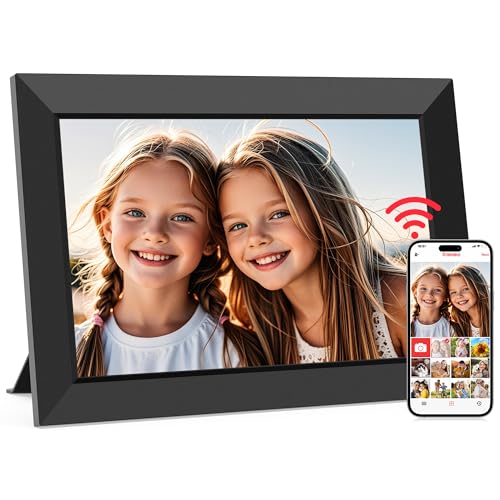 Frameo 10.1"
10.1" · 1280x800 · 32 GB built-in storage storage
The best digital frame under $100. If budget is your top concern, start here.
Check PricePaid links. We earn a commission if you buy, at no cost to you.
DigitalPictureFrames.com
Written by the editorial team at Anvil Road LLC. We research digital frames against manufacturer documentation so you get honest, sourced advice.