How to Preload Photos on a Digital Frame Before Gifting
Step-by-step guide to setting up and loading photos on a digital frame before giving it as a gift.
The best digital frame gifts are the ones that work the moment the recipient plugs them in. That means setting it up and loading photos before you wrap it. Here is exactly how to do that with every major brand.
Why Preloading Matters
If you hand someone an empty frame in a box, they have to set up WiFi, create an account, download an app, and figure out how to load photos. For grandparents and non-tech users, that is a recipe for frustration. Preload photos and all they need to do is plug it in.
For more gift ideas, see our 2026 digital frame gift guide.
Aura Frames
- Unbox the frame and plug it into power.
- Connect it to your home WiFi.
- Download the Aura app on your phone and create an account.
- Pair the frame using the code shown on screen.
- Upload 20 to 50 photos through the app.
- Wait for all photos to finish syncing to the frame.
- Unplug the frame and re-box it.
When the recipient plugs the frame in at their home, it will ask them to connect to their WiFi. After that, all your preloaded photos will appear right away. You can keep sending new photos through the app from anywhere.
Skylight Frames
- Unbox and plug in the frame.
- Connect to your WiFi and follow the on-screen setup.
- Note the frame's unique email address.
- Send 20 to 50 photos to that email address as attachments.
- Wait for the photos to download and appear on the frame.
- Unplug, re-box, and include the email address on a card.
Skylight frames are the easiest to preload because you just email photos. Include a card that says: "To send photos, email them to [frame-email]@skylight.is." That is all the recipient needs to know.
Nixplay Frames
- Unbox and plug in the frame.
- Connect to WiFi and download the Nixplay app.
- Create an account and pair the frame.
- Upload photos through the app or connect Google Photos.
- Create a playlist with your preloaded photos.
- Unplug the frame and re-box it.
The recipient will need to connect the frame to their WiFi. You can keep the account logged in so they do not need to set up a new one. Or create an account using their email so they can take ownership later.
Frameo-Based Frames
- Unbox and plug in the frame.
- Connect to WiFi.
- Note the pairing code shown on the screen.
- Download the Frameo app and enter the code.
- Send 20 to 50 photos through the app.
- Unplug and re-box.
The code pairs your phone to the frame permanently. When the recipient sets up their WiFi, the photos will already be stored on the frame's internal memory. Family members can add themselves later using a new pairing code.
Tips for a Great Gift Experience
- Load at least 20 photos. A frame showing only 3 photos gets boring fast. Load enough for a varied slideshow on day one.
- Mix the photos. Include old family photos, recent ones, and a few fun ones. Variety keeps the slideshow interesting.
- Set slideshow speed. Change the interval to 30 seconds or one minute so photos do not change too fast.
- Turn on the motion sensor. This saves power and prevents screen burn.
- Include a cheat sheet. Print a simple card with three steps: plug in, connect to WiFi, enjoy. Include the app name or email address for sending new photos.
- Invite family before gifting. Add your spouse, siblings, or kids to the frame through the app. That way everyone can start sending photos on day one.
What If the Recipient Has Different WiFi?
They will. When the frame is plugged in at their house, it will ask to connect to a new WiFi network. They enter their WiFi password and the frame reconnects. All preloaded photos stay on the frame. This takes about two minutes.
If the recipient is not comfortable doing this, plan to be there when they open it. Or do a video call and walk them through it. The process is the same on every brand: pick the WiFi network, type the password, done.
What else you need
Paid links. We may earn a commission at no extra cost to you.
- See today's price on Amazon
SanDisk 64GB Ultra USB 3.0 flash drive
Load the photos on this, plug it into the frame, and it plays with no internet at all.
- See today's price on Amazon
Acer USB-C SD card reader
You need this to copy photos onto the card from a phone or a laptop with no card slot.
Frames we recommend for this
Current models only. Prices are shown on Amazon, not here.
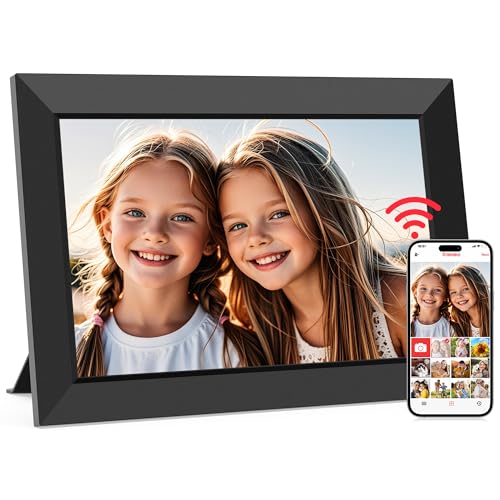 Frameo 10.1"
10.1" · 1280x800 · 32 GB built-in storage storage
The best digital frame under $100. If budget is your top concern, start here.
Check Price Aura Carver
10.1" · 1280x800 · Unlimited storage
The Aura Carver is a great pick if you want a widescreen frame with a calibrated screen and zero storage fees.
Check PricePaid links. We earn a commission if you buy, at no cost to you.
DigitalPictureFrames.com
Written by the editorial team at Anvil Road LLC. We research digital frames against manufacturer documentation so you get honest, sourced advice.